
All chapters (11/12)
User Guide / Chapter 11
Settings and Updates
Manage your account, password, email, and sound, and update the app to the latest version.
Open Settings (設定)
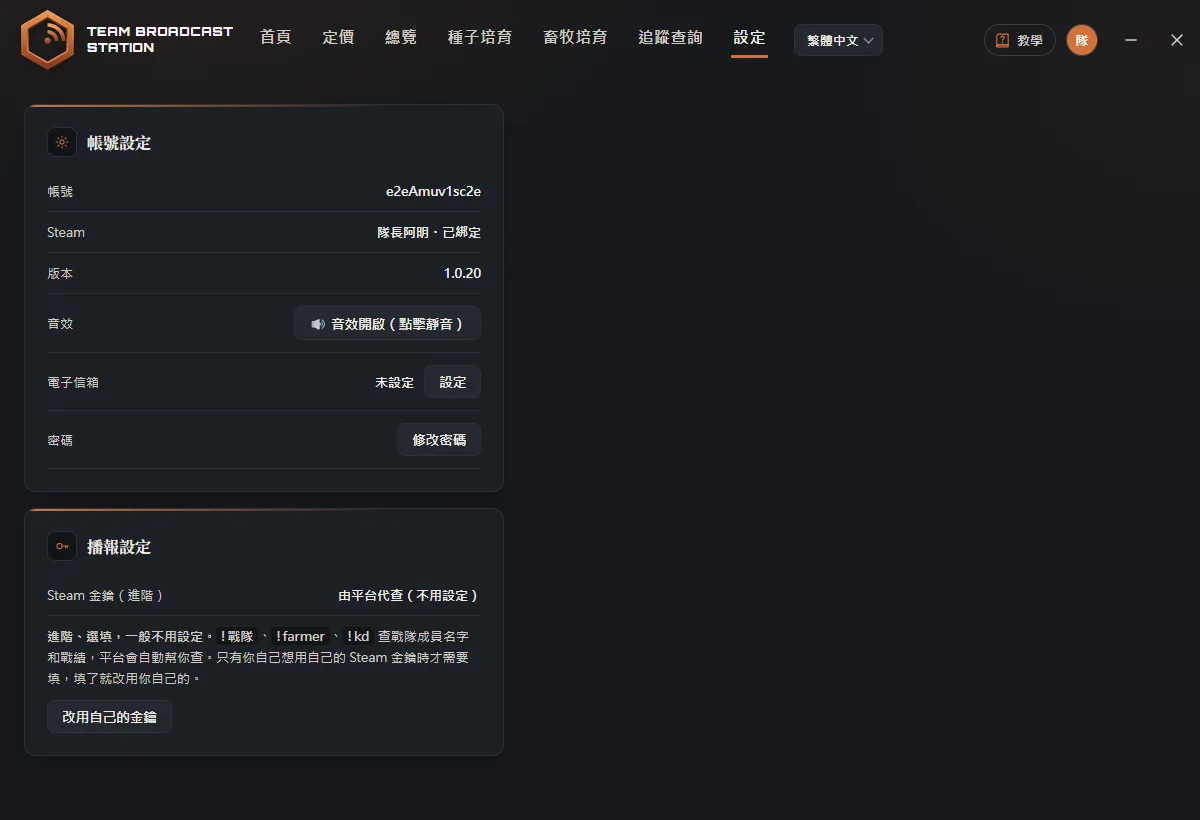
(Screenshots show the Chinese version of the app. Switch the app to English from the language menu in the top bar. Button names below are the English labels, followed by the Chinese label so you can match the screenshots.) Click the Settings (設定) tab at the top. You see two cards: Account Settings (帳號設定) and Broadcast Settings (播報設定).
Link Steam
On the Steam row, click Link Steam (綁定 Steam) and log in through Steam. When it's done, it shows Linked (已綁定), and from then on you can use Log In with Steam.
Set your email
Under Email (電子信箱), click the button next to it (設定), enter your email and current password, and click Send Code (寄驗證碼). Check your inbox for a 6-digit code (valid for 10 minutes; check your spam folder too), enter it, and click Confirm (確認).
TipWith an email set, you can recover your account if you forget your password.Change your password
Under Password (密碼), click Change Password (修改密碼). Enter your current password and your new password (at least 8 characters) twice, then click Save (儲存). After the change, you're logged out on all other PCs.
TipIf you signed up with Google or Steam, this shows Set Password (設定密碼) instead, and you can add a password.Auto-start on boot
Click Auto-start on Boot (開機自動播報) so it shows On (click to turn off) (已開啟(點擊關閉)). From then on, the app opens automatically when your PC starts (minimized to the tray) and resumes the servers that were broadcasting before shutdown. If you quit with Stop All & Quit (全部停止並結束) from the tray, it won't auto-broadcast next boot.
TipThis only works in the installed version. On startup, the app checks that you're logged in and your subscription is active before broadcasting.Turn sound on or off
Click the button on the Sound Effects (音效) row to switch between 🔊 Sound on (音效開啟) and 🔇 Muted (已靜音).
Steam API key (usually not needed)
Under Broadcast Settings (播報設定), the Steam API key defaults to "Handled by us (no setup needed) (由平台代查(不用設定))". Everything works without filling it in. Only if you want to use your own quota to look up teammate names and stats, click Use My Own Key (改用自己的金鑰), then click How to get a key (怎麼拿金鑰?) and follow the steps.
You see "New version available"
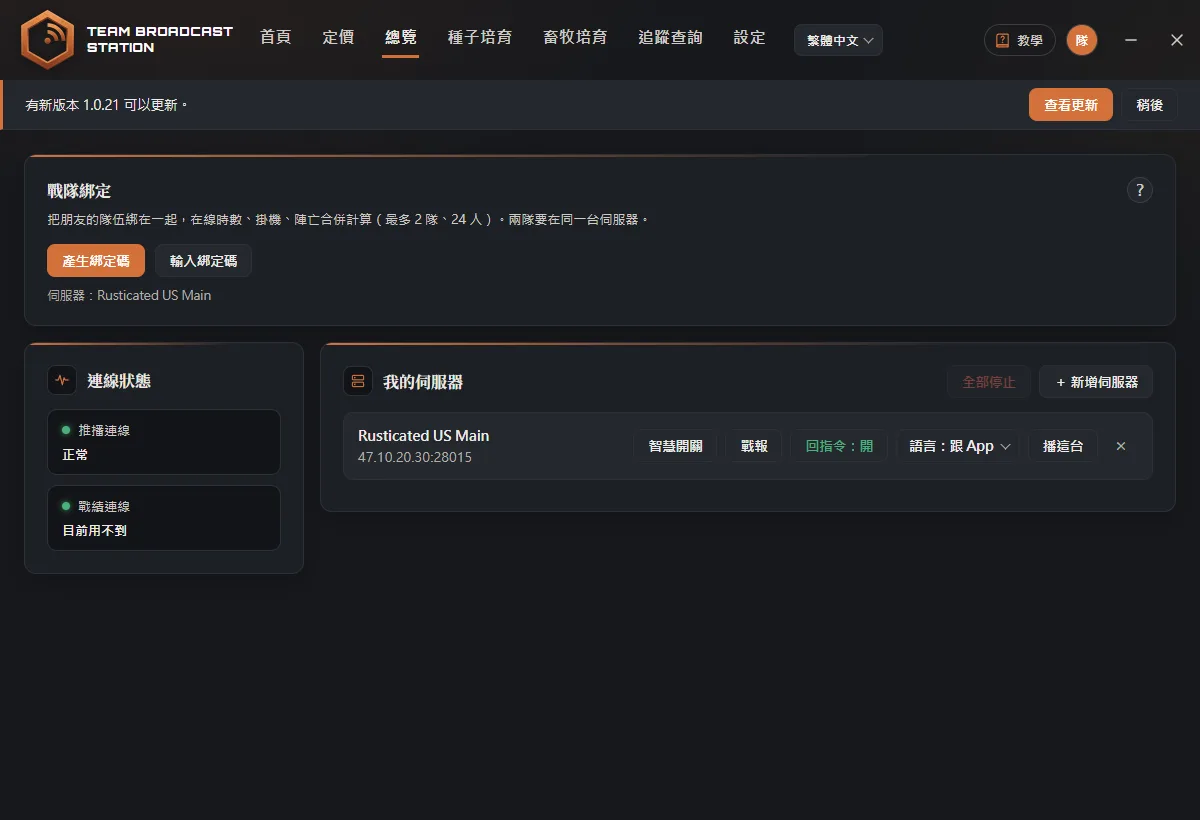
When there's a new version, a bar appears at the very top: "Version X is available. (有新版本 X 可以更新)". Whether to update is up to you.
Download the update
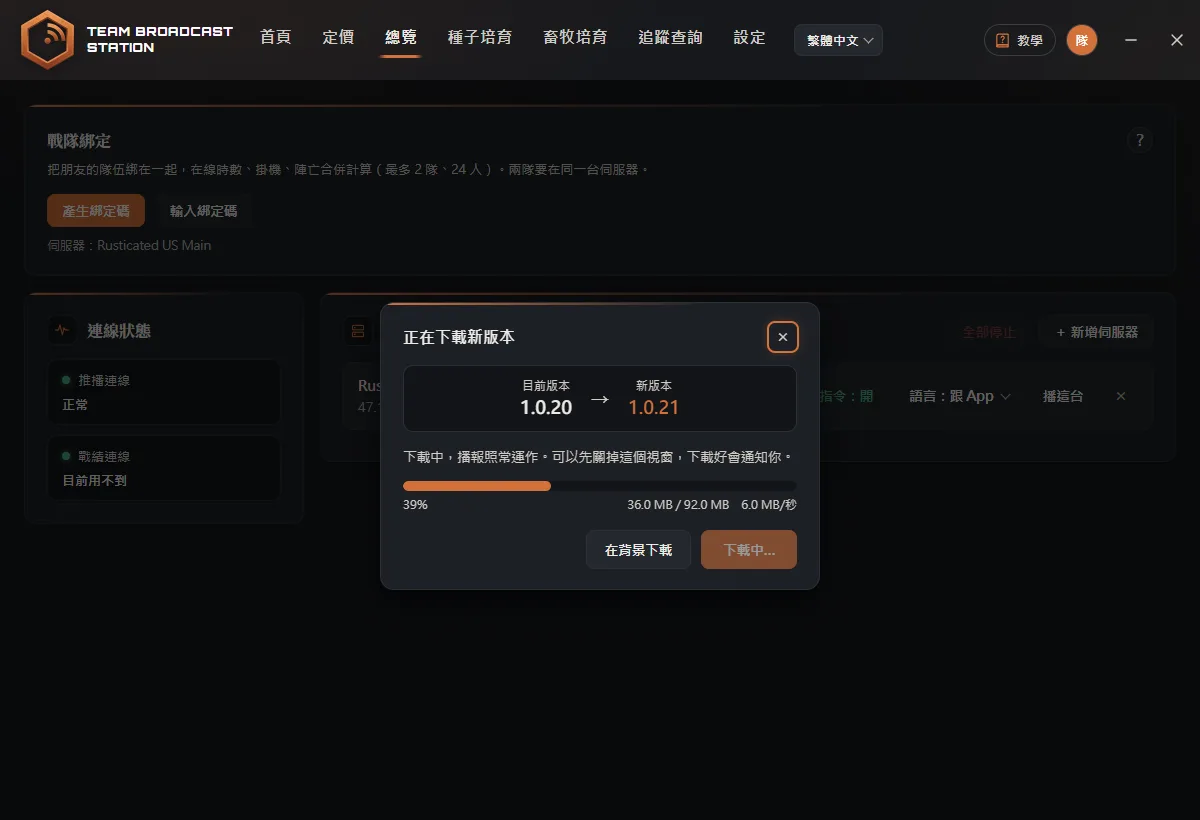
Click View Update (查看更新). A window shows your current version and the new version. Click Download Update (下載更新) and a progress bar appears. Broadcasting keeps running while it downloads. You can close the window; the app lets you know when the download is done.
Restart to install
When the download finishes, click Restart & Install (重新啟動安裝) (the button on the notification bar also changes to Restart & Install (重新啟動安裝)). The app closes, updates, and reopens on its own. Servers that were broadcasting pick up again automatically (with a gap of about a few dozen seconds), and the app shows "Update complete. Broadcasting resumed on N server(s). (已自動恢復 N 台伺服器的播報)".
TipIf the update is downloaded and you click Not Now (稍後再說), it installs automatically the next time you fully exit the app (right-click the tray icon → Stop all and exit (全部停止並結束)). You can also click View Update (查看更新) on the Version (版本) row in Settings (設定) anytime.Log out
Click your avatar in the top-right and choose Log Out (登出). If any server is still broadcasting, the app asks you first, because logging out stops all broadcasts.
FAQ
What if the update fails?
The window shows "Update Failed (更新沒有成功)". Click Try Again (再試一次). If it keeps failing, you can also re-download the installer from the website's Download page. Your settings won't be lost.