
All chapters (1/12)
User Guide / Chapter 1
Getting Started
Download and install the app, create an account, and pick a plan. You can be ready to broadcast in a few minutes.
Download the installer
(Screenshots show the Chinese version of the app. Switch the app to English from the language menu in the top bar. Button names below are the English labels, followed by the Chinese label so you can match the screenshots.) Go to the Download page on the website and click Download for Windows. The app runs on Windows 10/11 (64-bit). You also need a Steam account that owns Rust.
Run the installer
Open the installer you downloaded and follow the steps on screen. When it finishes, the app opens automatically and you see the home screen.
TipIf Windows shows "Windows protected your PC", click More info, then Run anyway to continue.Click Log In / Get Started (登入 / 開始使用)
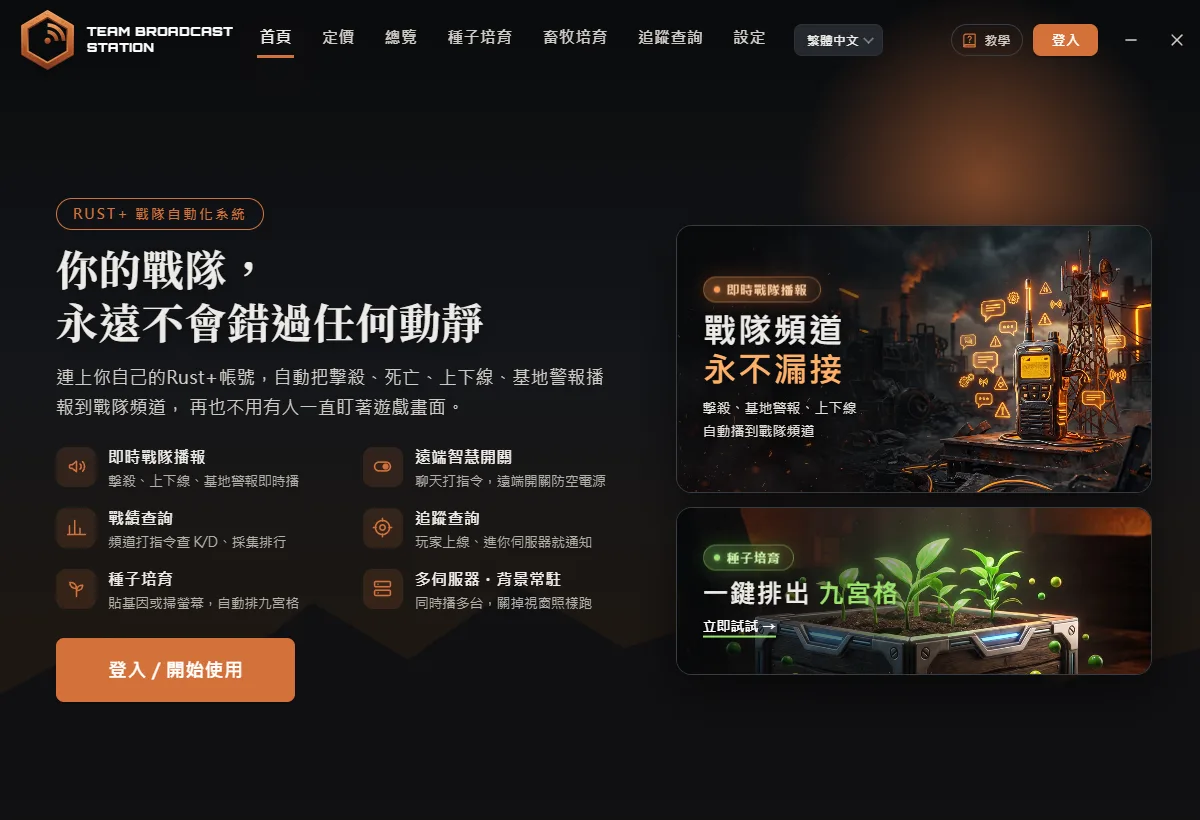
On the home screen, click Log In / Get Started (登入 / 開始使用). You switch to the login screen, which has two tabs: Log In (登入) and Sign Up (註冊帳號).
Create an account
Switch to Sign Up (註冊帳號). Enter a username (2-20 characters; Chinese, English letters, numbers, and underscores are allowed) and a password (at least 8 characters). Email is optional, but we recommend adding one so you can recover your password. Click Sign Up (註冊帳號) and you're logged in.
TipYou can also click Log In with Steam (用 Steam 一鍵登入), so you don't need a separate password.Logging in next time
Next time you open the app, enter your username or email and your password on the Log In (登入) tab. If you signed up with Steam, click Log In with Steam (用 Steam 一鍵登入).
TipForgot your password? Click Forgot password? (忘記密碼?). A reset email goes to the email address you set.Choose a plan
After you log in, open the Pricing (定價) tab and click View Plans & Subscribe (查看方案並訂閱), or click View Plans (查看訂閱方案) on Overview (總覽). Three plans appear: Monthly NT$320, Quarterly NT$830, and Yearly NT$2,500. All plans have the same features; longer plans cost less.
TipWithin 7 days of your first payment, you can get a full refund, no questions asked (once per account).Pay
Click the button on a plan card (Monthly: Choose Monthly (啟動監控) / Quarterly: Choose Quarterly (全面部署) / Yearly: Choose Yearly (長期駐守)). The app opens the payment page in your browser. After you pay, switch back to the app. Your subscription usually activates within a few seconds, and all locked features unlock.
Check your subscription status
Go back to the Pricing (定價) tab. You see "✓ Subscribed · N days left (✓ 訂閱中・還剩 N 天)". To change your payment method or cancel, click Manage Subscription (管理訂閱) here. If you cancel renewal and want it back, the same button changes to Resume Subscription (恢復訂閱).
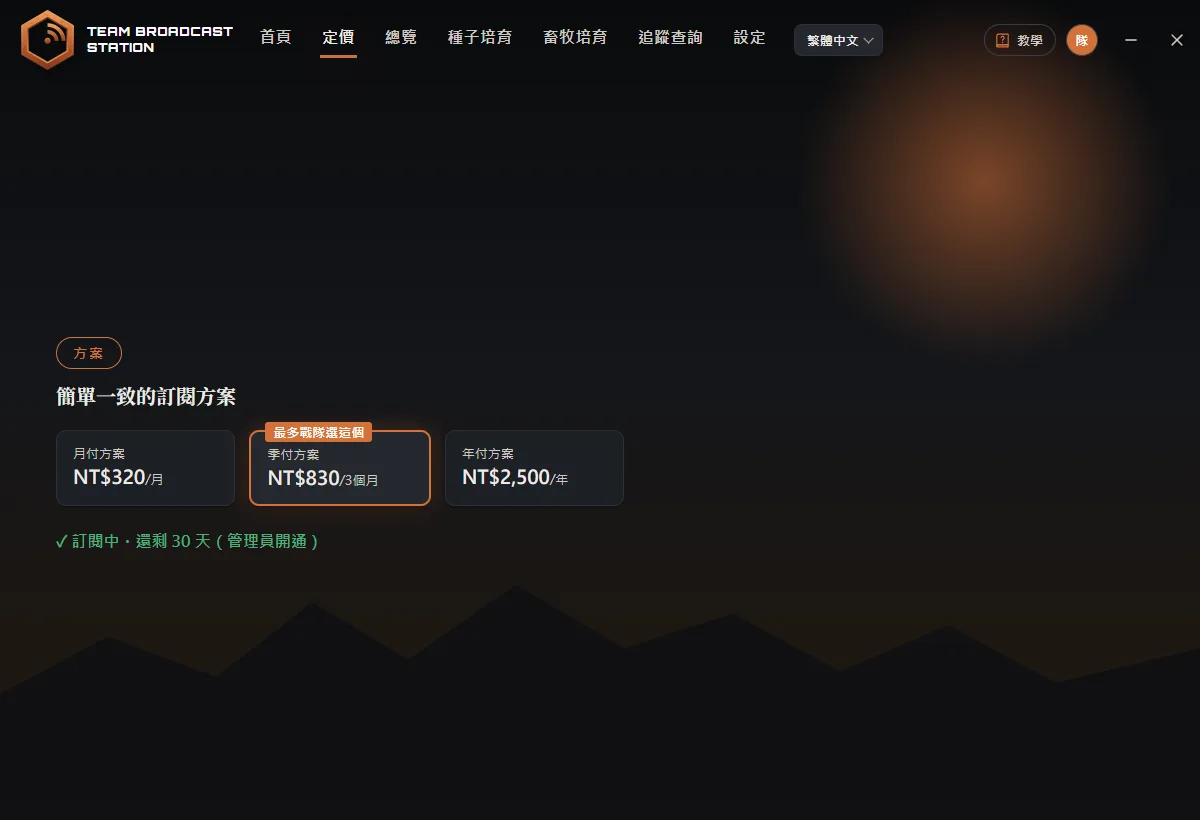 TipAfter you cancel renewal, you can keep using the days you already paid for until they run out. You won't be charged again. Accounts granted by an admin show "(granted by admin) ((管理員開通))" instead and have no Manage Subscription (管理訂閱) button.
The in-app tour plays once; come back here anytime
The first time you open each page, the app dims the screen, highlights each button, and walks you through it step by step. To see it again later, click the Guide (教學) icon in the top-right corner. It opens this user guide in your browser and jumps straight to the section for that page.
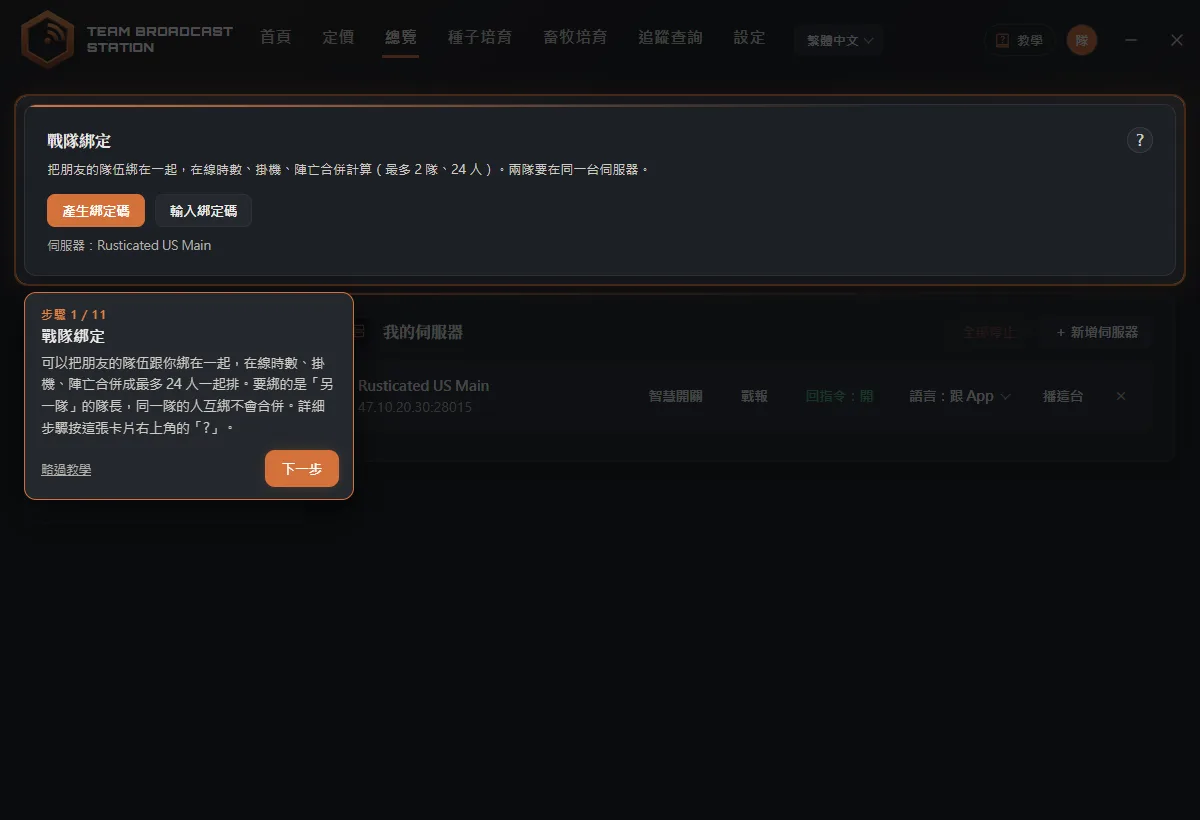 TipThe language menu next to the Settings (設定) tab lets you switch between English, Traditional Chinese, and Simplified Chinese.
FAQ
Can I look around before I subscribe?
Yes. Once you log in you can see every page, but features stay locked until you click View Plans (查看訂閱方案) and subscribe.
If my subscription expires, do I lose my settings?
No. Your servers, Smart Switches, and breeding records are kept, and you can pick up where you left off after you renew. Broadcasting stops automatically when your subscription expires.
What if my payment fails?
The app shows "Payment failed (付款沒有成功)" and pauses features. Click Update Payment (更新付款方式) and use another card. Once it goes through, everything resumes and your settings are still there. Don't buy a second plan: the app blocks it and tells you to click Manage Subscription (管理訂閱) to update your payment method, so you don't get charged twice.