
All chapters (10/12)
User Guide / Chapter 10
Player Tracker
Keep an eye on specific players: whether they're online and whether they've joined your server. You get a heads-up when something changes.
Copy their Steam link
(Screenshots show the Chinese version of the app. Switch the app to English from the language menu in the top bar. Button names below are the English labels, followed by the Chinese label so you can match the screenshots.) Find the player's Steam profile and copy the URL (starting with steamcommunity.com), or their 17-digit SteamID.
Paste it and add a note
Open the Tracker (追蹤查詢) tab and paste the link into the box on the left. Use the note field on the right for something like "the group next door" so you can tell them apart later.
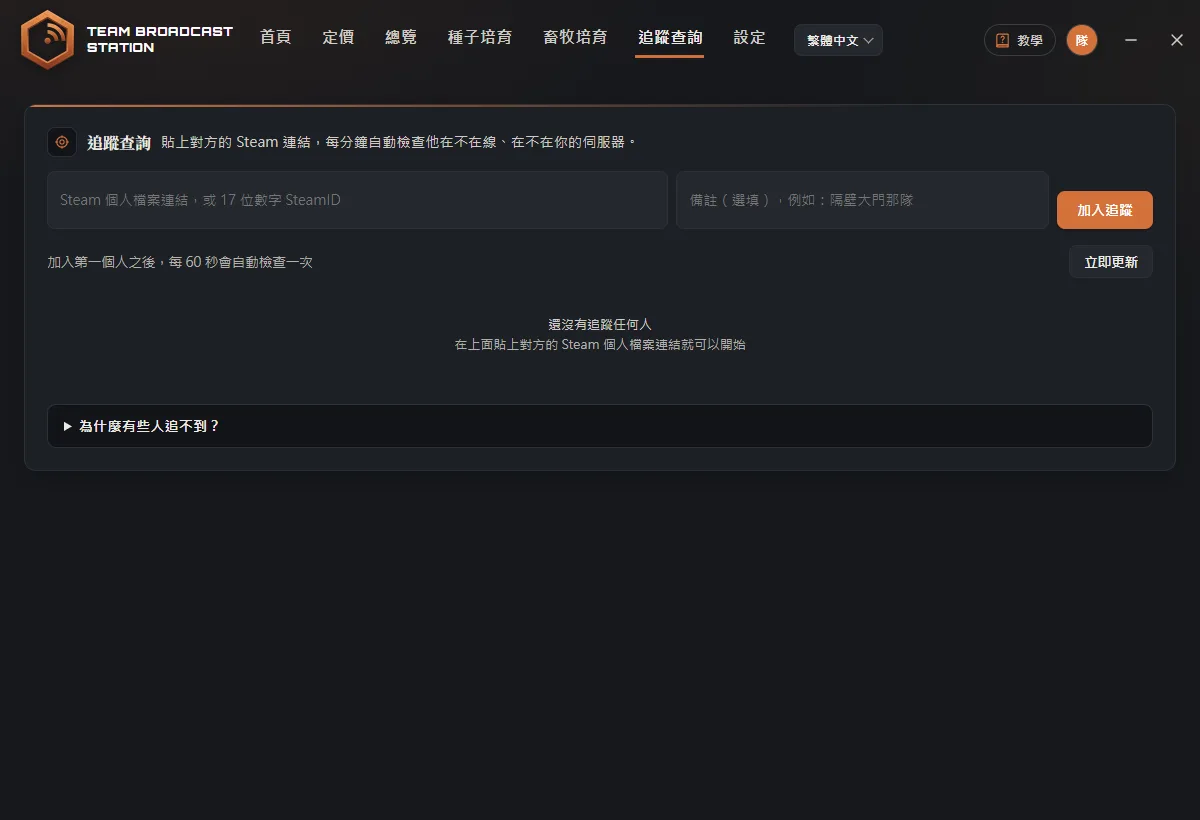
Click Add to Tracker (加入追蹤)
Click Add to Tracker (加入追蹤). The screen shows "Added. Checking… (已加入,正在查詢…)", then the player appears in the list. After that, the app checks automatically every 60 seconds.
TipYou can track up to 50 players.Read each player's status
The list shows whether each player is Offline (離線), Online on Steam (Steam 在線), Playing Rust (在玩 Rust), or On your server (在你的伺服器).
TipWhen someone comes online, goes offline, or joins your server, a small pop-up appears in the bottom-right of the app window. You won't see it while the app is minimized to the tray or covered by the game, so check Recent Activity (最近動態) when you're back. If nothing is broadcasting, clicking × closes the app and tracking stops too.Other buttons
Next to each player you can click Copy Address (複製位址) (the server they're on; paste it into the F1 console in Rust to connect), Steam Profile (Steam 頁面), or Remove (移除) to stop tracking. To check right away instead of waiting, click Refresh Now (立即更新).
See the online/offline log
Recent Activity (最近動態) at the bottom records who came online, went offline, or switched servers, and when. Click Clear (清空) to clear the log.
FAQ
Why can't I track some players?
The data comes from Steam. You can only see that someone is playing Rust and which server they're on if their Steam profile is fully public. If it's private, you only see online or offline. If they appear invisible, they look offline. That's how Steam works, and it's the same for any tracking tool.
How does On your server (在你的伺服器) work?
The app compares the address of the server the player is on with the servers you've paired in My Servers (我的伺服器).